Genius Art: Image AI Generator
- 4.3
- Rating
- 1.00M
- Installs
- Free
- Price
 Analysis by App-foxy
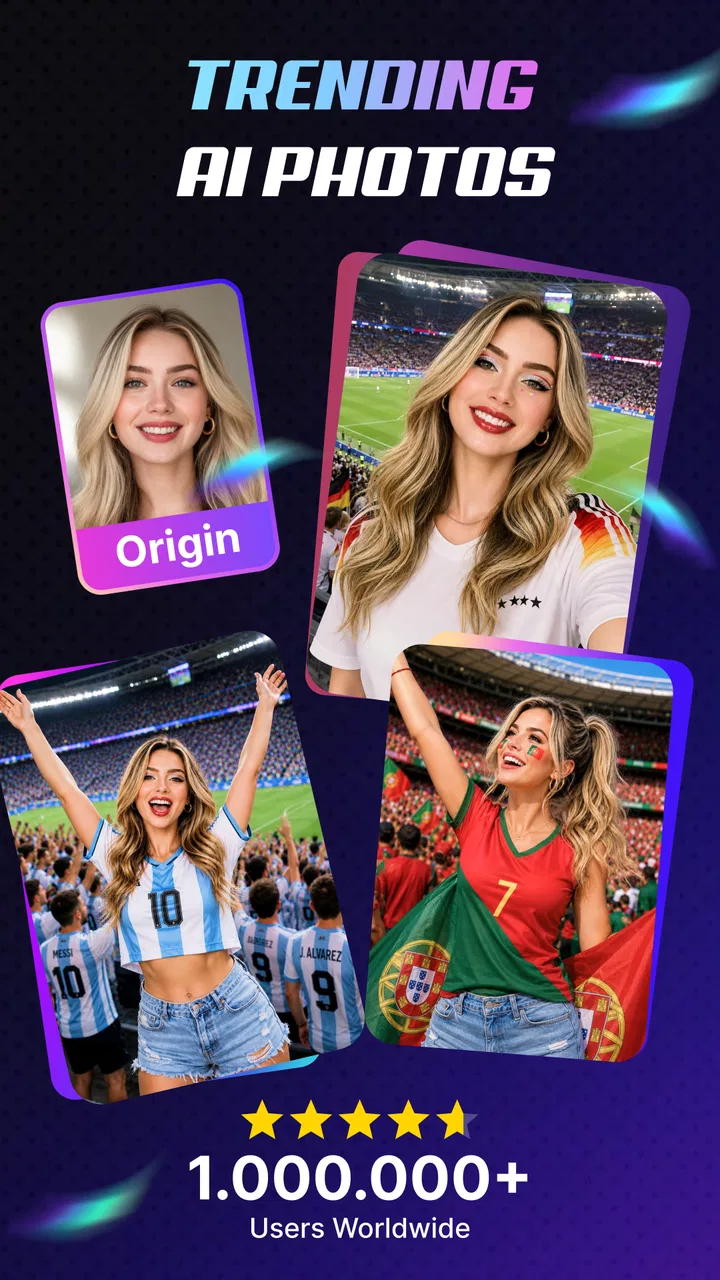
I approached Genius Art: Image AI Generator as an everyday creative tool rather than a replacement for a full illustration studio. Its appeal is straightforward: you describe an idea and let the app turn that prompt into artwork. In my experience, that makes it useful when I need a visual starting point quickly, especially for mood boards, social posts, personal experiments, or a rough concept that would take much longer to draw from scratch.
It belongs to the Art & Design category and is developed by AMOBEAR TECHNOLOGY GROUP. The app is free to install, with optional in-app purchases ranging from $5.99 to $49.99 per item. That combination makes the first step easy, but it also means I would treat the free experience as a chance to test the workflow before spending anything. The app is rated for Everyone, so it is accessible to a broad audience, although the quality of the result still depends heavily on how carefully the user describes an idea.
How Genius Art fits into an AI art workflow
The biggest strength here is speed. Traditional drawing apps give me brushes, layers, shapes, and color controls, but they expect me to build the image manually. An AI art generator starts from language instead. I can think in terms of a subject, atmosphere, composition, and visual direction, then see how the system interprets those instructions. That is a very different experience from opening a blank canvas.
You May Also Like

 Blood Strike: 2.5 Anniversary
Blood Strike’s Loadouts Turn Every Drop Into a Tactical Gamble
A close look at Blood Strike’s custom loadouts: how fast access to signature weapons reshapes its battle royale rhythm, rewards preparation, and narrows the gap between fights.

 Pandora - Music & Podcasts
Pandora’s Music Is Easy to Start, but Harder to Recover
Pandora’s strength is its low-effort path from a seed to a station. Its weak spot is how much confidence it asks you to place in connection, setup, and quiet recovery.

 8 Ball Pool
 Is Built on Rivalries, Rematches, and Routine
A close look at the rivalries, rematches, shared routines, and unanswered safety questions that turn a quick pool match into a persistent mobile community.

 Samsung Music
’s Quiet Strength Is Playing What You Already Own
Its reach comes less from spectacle than from dependable access to a personal library. That simplicity is both the app’s strongest retention engine and its ceiling.

 AccuWeather: Weather Radar
AccuWeather Review: A Quick, Clear Forecast for Everyday Decisions
For everyday plans, the best forecast is the one you can understand quickly. AccuWeather makes rain timing, radar, and local conditions easy to act on, with a few trade-offs.

 Hill Climb Racing
Why Hill Climb Racing Still Turns Crashes Into One More Run
A tiny car, a bumpy hill and one more upgrade: Hill Climb Racing keeps resurfacing because its simple chaos makes every near-miss feel personal.
More From Our News Desk



I found this approach most useful during the uncertain first stage of a project. If I am not sure whether a poster should feel calm, dramatic, playful, or futuristic, generating several interpretations can help me choose a direction. The resulting image may not be ready for publication, but it can reveal which combination of colors, framing, and subject matter feels right.
That distinction matters. I would not install this expecting precise control over every small detail in the way I might get from a conventional drawing or photo-editing app. The value is in exploration and rapid visual development. Once I know exactly where every object must go, a layer-based editor is usually the better tool for finishing the work.
The store presents the app as a way to transform ideas into artwork with smart AI technology, but I think the practical benefit is more specific: it lowers the barrier between a vague thought and a visible draft. Someone who cannot draw can still experiment with visual concepts, while an experienced designer can use it to generate references before doing more controlled work elsewhere.
What the first prompt should contain
A short prompt can produce an attractive image, but a more deliberate prompt gives me a better chance of getting something usable. I would begin with the main subject, then add the setting, mood, lighting, and broad visual style. For example, instead of asking for “a city,” I would describe a quiet coastal city at dawn, viewed from a high street, with soft blue light and a storybook atmosphere.
This does not guarantee a particular result, and I would avoid treating the wording as a strict command language. AI image generation is interpretive. Still, separating the important elements makes it easier to understand why one result works better than another. If the subject is correct but the mood is wrong, I can adjust the atmosphere rather than rewriting everything randomly.
One useful habit is to change only one part of a prompt between attempts. If I alter the subject, camera angle, lighting, and style at the same time, I cannot tell which change improved the image. Keeping a small note of successful wording is also worthwhile when I am developing a series with a similar visual identity.
I would also keep prompts focused. Adding every possible detail can create competing instructions, especially when the image needs a clear central subject. In my testing mindset, the best workflow is usually to establish the composition first, then refine the mood and finish. That is more reliable than trying to describe an entire finished poster in a single crowded sentence.
Useful situations beyond casual image making
A realistic everyday example would be preparing a birthday invitation for a family member. I might use the app to explore a gentle floral background, a colorful illustrated scene, or a whimsical table setting. I would not rely on the generated image to contain accurate invitation text; I would bring the chosen artwork into a separate design tool and add the wording there. This two-step workflow avoids asking the generator to handle jobs it is not suited to handle.
The same approach works for a small presentation. If I need a visual metaphor for teamwork, travel, sustainability, or a fictional setting, the app can help me create a reference image instead of searching through stock libraries. The important trade-off is that the image may be visually distinctive without being factually precise. For a presentation about a real place, product, or person, I would verify every visual detail before treating it as documentary material.
Writers can also use it for character or environment exploration. I might generate several interpretations of a fictional room, then use the strongest version to clarify the setting in my notes. This is not the same as commissioning a consistent character sheet, because AI-generated details can shift between attempts. It is better for inspiration than for maintaining exact continuity across a long project.
For children or beginners, the Everyone age rating makes the app approachable, but I would still encourage an adult to explain that generated images are interpretations, not proof that an event or person exists. That small lesson is valuable whenever an AI art tool is used for schoolwork or shared online.
Where it differs from ordinary art apps
Compared with a drawing app, Genius Art removes much of the manual setup. I do not need to choose a brush, build a sketch, or understand layers before seeing a concept. That is its main advantage. The downside is reduced predictability: a brush responds directly to my hand, while an AI generator decides how to translate my words into visual form.
Compared with stock-image services, the app offers more room for unusual combinations. I can ask for an invented scene rather than searching through existing photographs. However, stock images are often more dependable when I need a recognizable real-world object, consistent branding, or a clearly licensed commercial asset. I would use the generator for ideation and atmosphere, not automatically assume that every output is suitable for a professional campaign.
Compared with a full desktop design suite, it is faster but less exact. A professional editor remains preferable for typography, alignment, color correction, print preparation, and repeatable layouts. My preferred workflow would be to use this app at the beginning, then move to a more controlled tool once the concept is settled.
That is also why I would skip it if my main goal is detailed hand drawing. People who want pressure-sensitive strokes, precise layer management, or direct control over every pixel may become frustrated. The app is aimed at turning language into visual possibilities, not at reproducing the experience of a digital sketchbook.
Trust starts with visible choices
When I use an AI art app, I pay attention not only to the images but also to the moments where the app asks me to make a choice. The practical questions are simple: Can I understand when a generation is being requested? Is a purchase clearly presented? Do I know whether I am continuing with a free option or entering a paid flow? These details matter because creative experimentation can encourage repeated attempts.
Since the app is free to install but includes paid items, I would approach the purchase screen carefully rather than tapping through automatically. I would check what the item provides, whether the charge is one-time or connected to another arrangement shown on the device, and whether the result is worth the cost for my particular project. The listed range reaches from $5.99 to $49.99 per item, so the difference between casual testing and regular use can be significant.
I also prefer to create a small plan before generating repeatedly. For example, I might decide that I want three distinct directions for a poster: minimal, illustrated, and cinematic. This gives the session a purpose and helps me judge whether further attempts are improving the concept or merely producing more variations. It is a simple way to keep both attention and spending under control.
The app’s current version is 1.5.9_20260306, and it requires Android 8.0 or later. That makes checking the device requirement worthwhile before installation, particularly on an older phone or tablet. The release date shown for the app is January 9, 2025, so I would still keep normal app hygiene in mind: install through the official store, review the access prompts presented on the device, and keep the operating system reasonably up to date.
Handling personal ideas and sensitive material
Prompting an AI art app can feel harmless until the idea includes personal information. I would avoid putting names, addresses, private conversations, medical details, passwords, or identifying photographs into a creative prompt unless I had a clear reason and understood the app’s visible choices around that material. A prompt can reveal more about a person than the final image does.
This is especially important for family portraits, school projects, workplace concepts, and images based on someone who has not agreed to participate. I would use a generic description when possible: “an older person in a garden” is safer than entering a full identity and personal background. If I needed a likeness, I would first consider consent and whether the project truly required it.
I would also separate private brainstorming from public sharing. Before posting an output, I would inspect it for accidental names, logos, recognizable faces, or details that could be misunderstood. A generated image can look convincing even when it is entirely fictional. Adding a clear caption or context is sensible when the image might be mistaken for a real event.
My trust in the app therefore comes less from assuming that every AI service handles information in the same way and more from paying attention to what the app visibly asks me to do. I would read any permission or account prompt shown during setup, decline access that is not necessary for my intended workflow, and avoid treating a creative tool as a private notebook. Those habits give me more control without making claims about practices that are not visible in the app experience.
Small workflow choices that improve the results
One of the more useful techniques is to generate a concept without requesting text inside the artwork. AI-generated lettering is often less dependable than the surrounding image, so I would leave blank space for a title and add the text later in a design editor. I would describe the placement instead, such as an uncluttered upper area or a darker side for contrast.
A second technique is to ask for composition through ordinary visual language. Terms such as close-up, wide scene, centered subject, overhead view, or empty space around the subject can influence the structure more effectively than piling on decorative adjectives. This is particularly helpful for thumbnails, invitations, and social graphics where the placement of the subject matters as much as the style.
A third is to treat the first output as a diagnostic. If the subject is repeatedly distorted, I would simplify the prompt and remove secondary objects. If the mood is right but the framing is wrong, I would change only the viewpoint. This patient, incremental method is more productive than assuming the app failed after one attempt.
For a consistent project, I would save the wording that produced the closest visual direction and reuse its structure, while accepting that exact repetition may not happen. I would also keep the final editing stage separate. Cropping, adding typography, correcting color, and checking the image at the intended display size are still my responsibility.
Who should try it and who should pass
I think the app is a good fit for curious beginners, writers, students, social-content creators, and designers who want quick visual references. It is particularly helpful when the obstacle is not technical skill but a lack of starting ideas. The free installation makes it reasonable to explore before deciding whether the paid options fit a regular workflow.
I would be more cautious if I needed guaranteed consistency, exact anatomy, accurate product representation, or a legally uncomplicated commercial asset. In those cases, a professional illustrator, a carefully licensed stock source, or a conventional design application may be a better choice. Likewise, someone who mainly wants to draw by hand should look for an app built around brushes and layers instead.
The public response suggests that many people find the concept appealing: the app has a 4.7 average from around 10K ratings and has passed 1M+ installs. Those figures indicate broad interest, but they do not remove the need to judge the actual workflow on my own device. AI output can be subjective, and an app that feels inspiring to one person may feel unpredictable to another.
Because the app is rated Everyone, I can recommend it as an accessible creative experiment, with the usual reminder that age suitability does not replace supervision or good judgment around prompts, sharing, and purchases. I would show a younger user how to avoid personal information and how to recognize that a generated scene may not represent reality.
My measured recommendation
After looking at the app as both a creative tool and a service that asks for user decisions, I see a clear role for it. It is strongest when I need fast visual exploration, a rough concept, or an unusual starting point. It is less convincing as an all-in-one replacement for illustration, photo editing, typography, or professional asset production.
I would install it when I had a specific experiment in mind, begin with simple prompts, and keep the final design work in a more precise editor. I would also review every permission, account prompt, sharing option, and purchase screen as it appears, rather than assuming that convenience should override caution. That approach keeps the creative process enjoyable while preserving control over what I provide and what I publish.
My recommendation is positive but practical: try it if turning words into visual drafts sounds useful, especially for brainstorming and personal projects. Skip it if you need exact, repeatable artwork or a traditional drawing experience. Used within those boundaries, Genius Art: Image AI Generator is a convenient way to move from an idea to something visible without pretending that the first generated image is always the finished answer.
FAQs for Genius Art: Image AI Generator
01What is Genius Art: Image AI Generator and how does it work?
Genius Art: Image AI Generator is a cutting-edge app designed to create stunning images using artificial intelligence. It leverages advanced algorithms to transform your ideas into digital art. Simply input your concept, and the AI will generate a unique image based on your description. It's perfect for artists, designers, and anyone looking to explore creative possibilities.
02Is Genius Art: Image AI Generator free to use?
Genius Art: Image AI Generator offers a free version with basic features. However, to access premium tools and additional functionalities such as higher resolution images and more design options, users can opt for in-app purchases or a subscription plan. This flexibility allows users to choose a package that best fits their needs.
03What platforms support Genius Art: Image AI Generator?
The app is available on both Android and iOS platforms, ensuring that a wide range of users can enjoy its features. It requires a modern operating system to run smoothly, so make sure your device is updated to the latest version to ensure compatibility and optimal performance.
04Can Genius Art: Image AI Generator be used offline?
No, Genius Art: Image AI Generator requires an internet connection to function. The app relies on cloud-based AI algorithms to process user inputs and generate images. This means you'll need a stable internet connection to create your artwork, but it also ensures that you always have access to the latest updates and features.
05Are there any privacy concerns with using Genius Art: Image AI Generator?
Genius Art: Image AI Generator takes user privacy seriously. The app collects minimal data, primarily to enhance user experience and improve functionality. Images and data are processed securely, and the app complies with privacy regulations. Users can review the app’s privacy policy for more detailed information on data handling and protection.
Pros
- Intuitive interface for easy navigation.
- High-quality image generation output.
- Wide range of artistic styles available.
- Fast processing and image creation.
- Regular updates with new features.
Cons
- Requires a stable internet connection.
- Limited free version functionality.
- Occasional ads in the free version.
- High-quality images may take time to render.
- Subscription needed for premium features.

Genius Art: Image AI Generator
Gallery